

Why run your own bitcoin node?
A Bitcoin node is the only way to be certain that the coins you receive are real and that the rules you agreed to are the ones being enforced. StartOS takes that idea a step further and turns the same Raspberry Pi 4 into a personal server, where Bitcoin Core, an Electrum server and the rest of your services run under your control instead of in somebody else’s cloud. Here is the case for running a node, in detail:
Reasons to run your own Bitcoin node
What’s Start9?
Start9 is a pioneering tech company focused on digital sovereignty. Their flagship product, StartOS, is a personal server that empowers individuals and organizations to take control of their digital lives. By hosting services and applications, users can safeguard their data’s privacy and security, reducing reliance on centralized platforms. Start9’s commitment to open-source software and core values of privacy and decentralization make it a trailblazer in the movement for greater autonomy in the digital realm. In a world where data privacy is paramount, Start9 offers a powerful solution for those seeking to regain control over their digital infrastructure.
How to set up a Bitcoin Node?
To set up a Bitcoin Node with Start9 on a Raspberry Pi 4, you need to follow the following steps:
Step 1: Buy the parts
You will need to buy the following parts. You can buy them using the Amazon or AliExpress affiliate links in this article to support us.
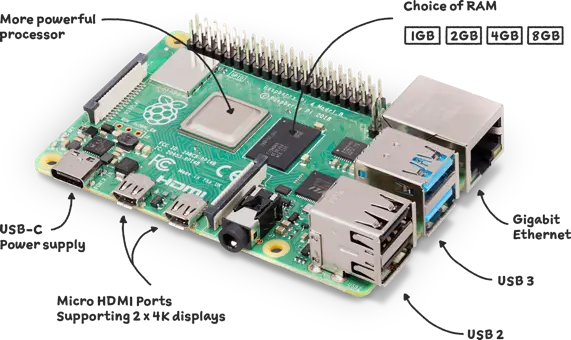
Raspberry Pi 4
Pick 8 GB RAM for maximum performance.
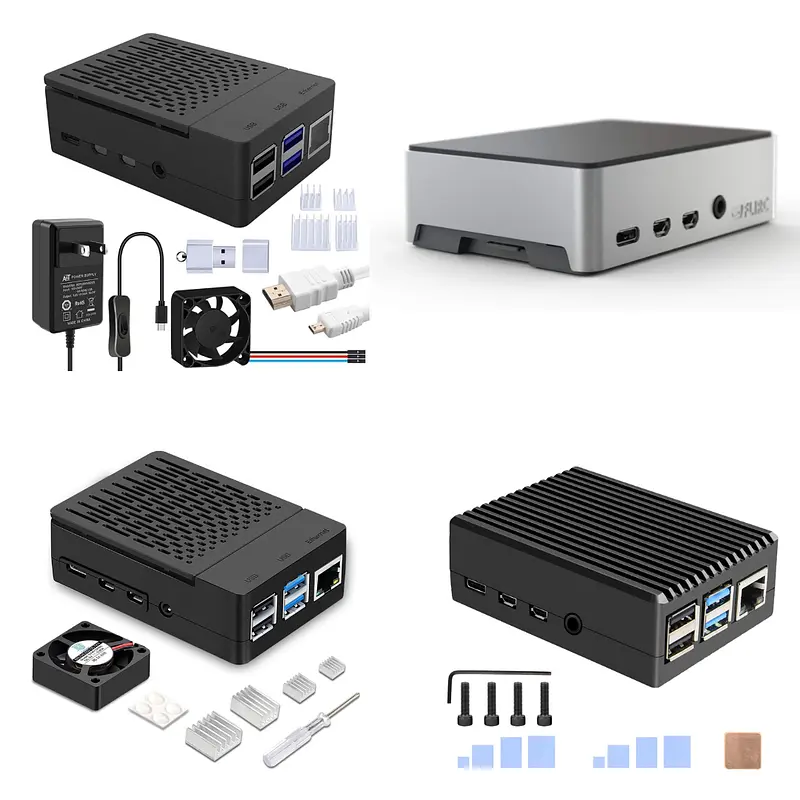
Wrap your new personal server in a nice box.
Some good options on Amazon:
- GeeekPi Case
- Flirc Raspberry Pi 4 Case
- iUniker Raspberry Pi 4 Case
- Geekworm for Raspberry Pi 4 Aluminum Case
Some good options on AliExpress:
- DIYzone Store Aluminum Alloy Case
- Electree Raspberry Pi 4 Model B ABS Case
- Argon One V2 Case
- Raspberry Pi 4 Aluminum Alloy Case
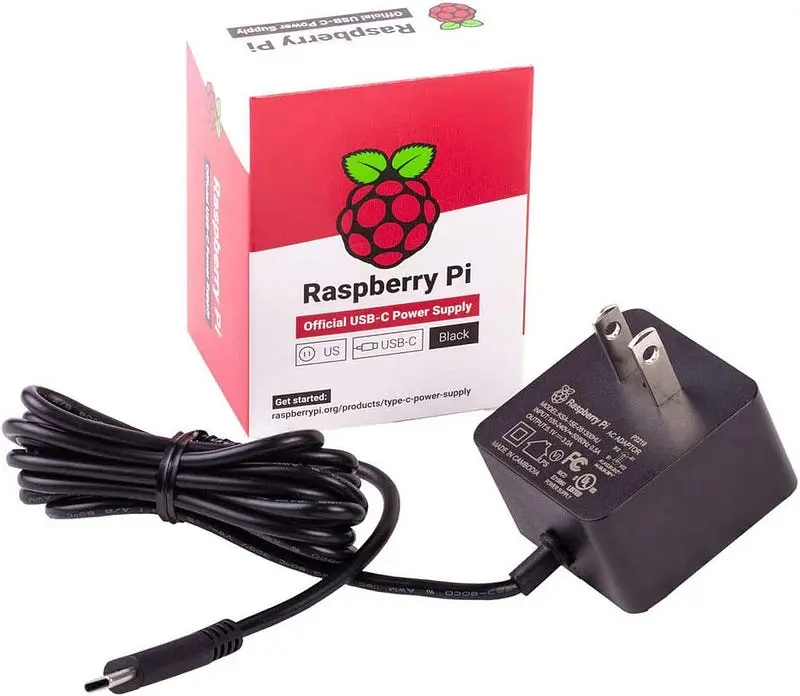
Power Supply
Make sure to use the official Raspberry Pi power supply to prevent any unexpected issues.
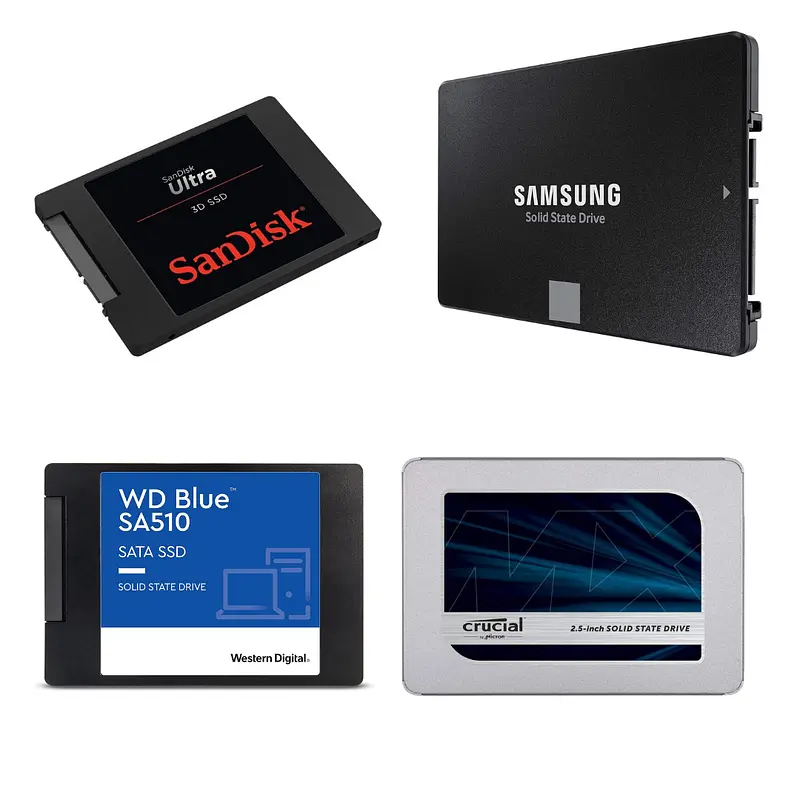
2 TB or more is recommended.
Some good options on Amazon:
Some good options on AliExpress:
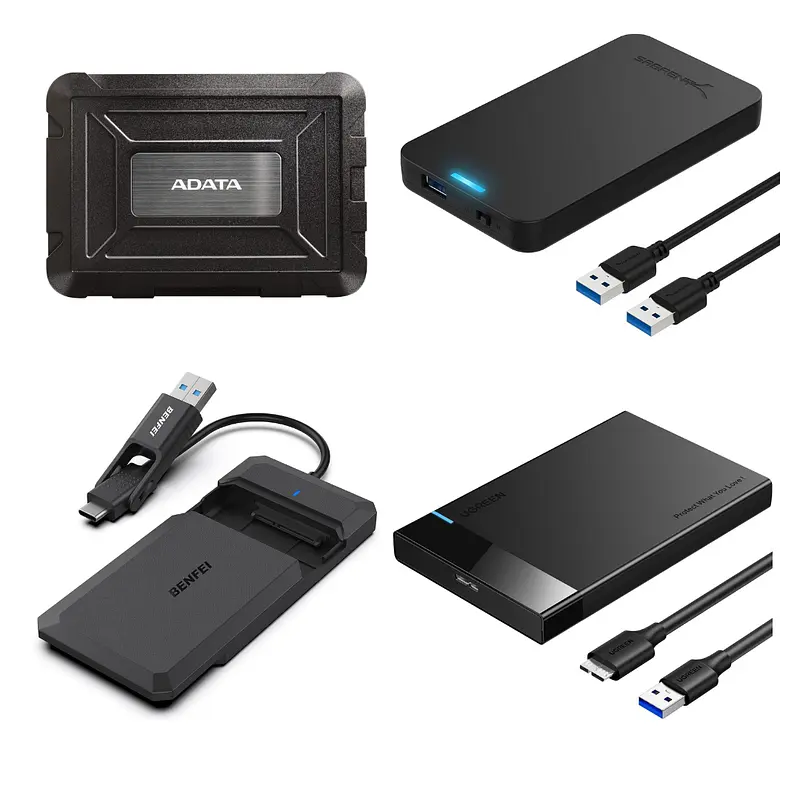
Storage Drive’s Enclosure
To connect the storage drive to the Raspberry Pi via USB.
Some good options on Amazon:
Some good options on AliExpress:
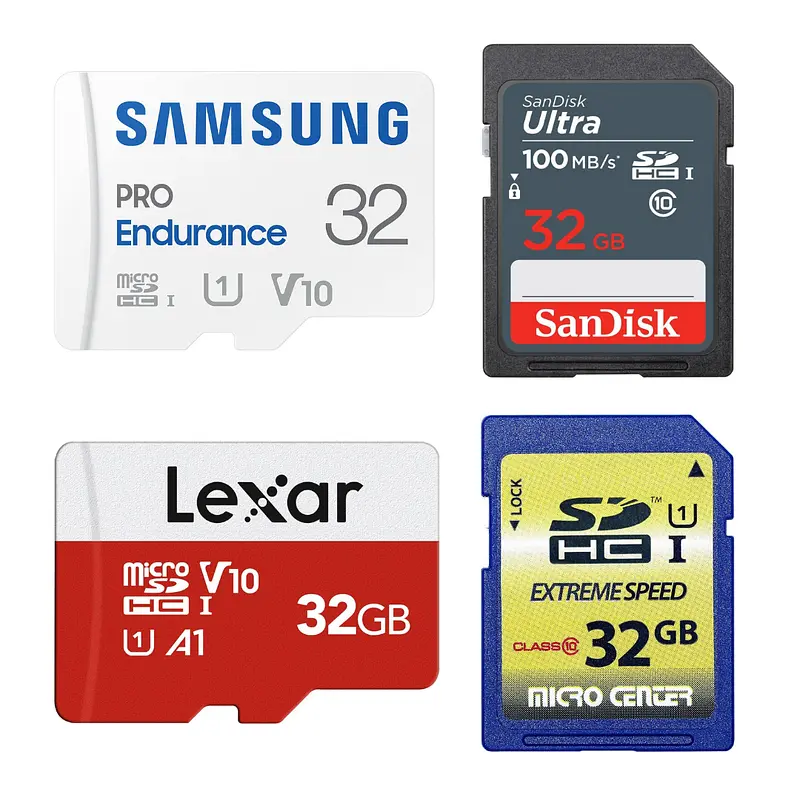
microSD card
The microSD card is only used to run the firmware. All of your apps and data are stored on the storage drive. You will need a 32GB+ microSD.
Some good options on Amazon:
Some good options on AliExpress:
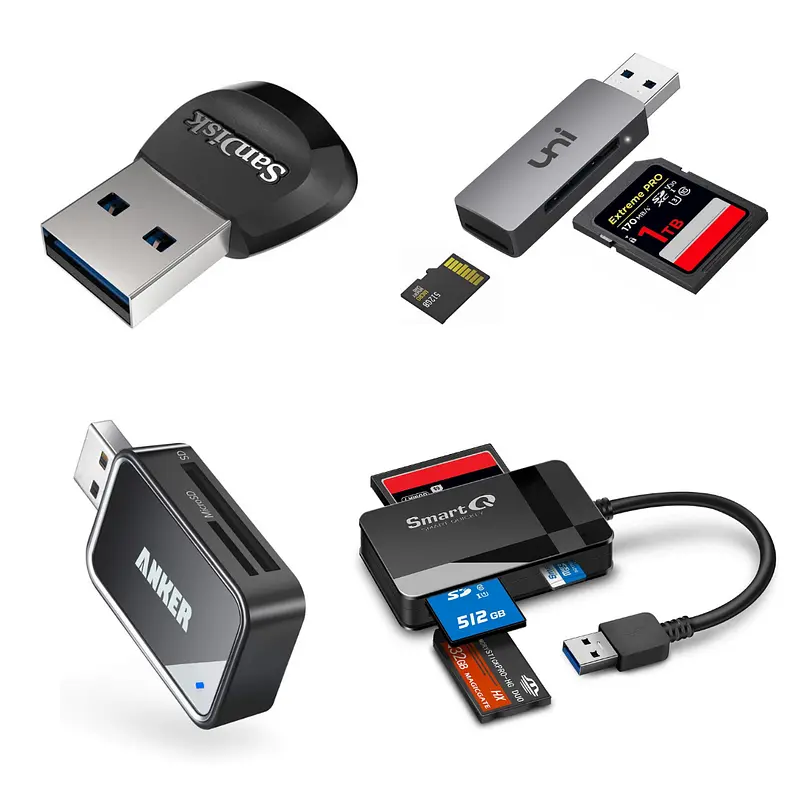
MicroSD Adapter (Optional)
You will need to buy an adapter if your computer doesn’t have a MicroSD slot.
Some good options on Amazon:
Some good options on AliExpress:
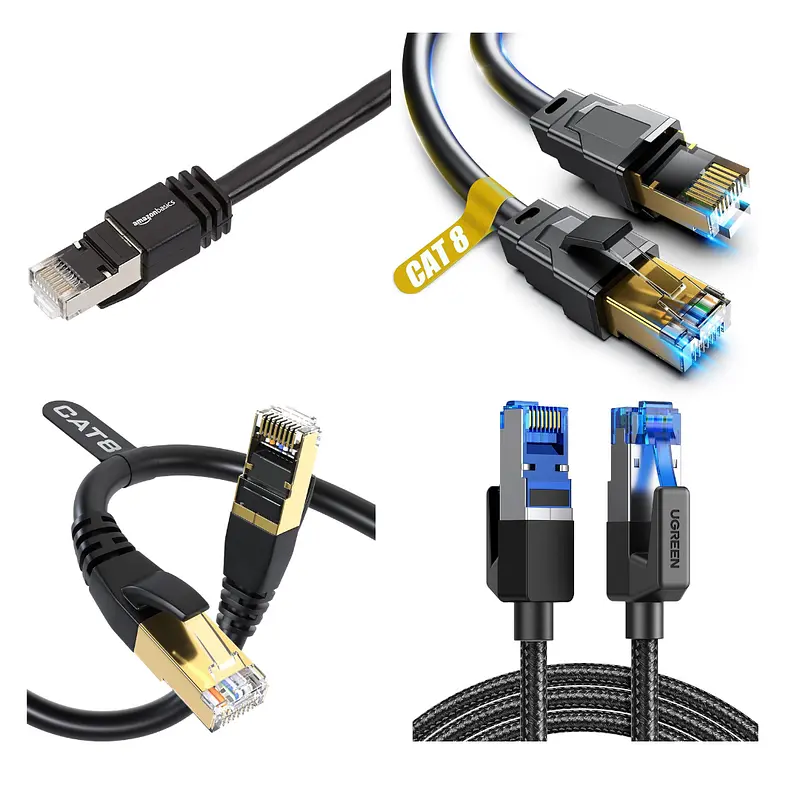
Ethernet Cable(Optional)
You can connect your Raspberry Pi to the internet using Wifi or Ethernet. If you choose Ethernet, you will need an Ethernet cable to connect to your router.
Some good options on Amazon:
- Amazon Basics RJ45 Cat 7
- Vabogu Cat 8 Ethernet Cable
- DbillionDa Cat8 Ethernet Cable
- UGREEN Cat 8 Ethernet Cable
Some good options on AliExpress:
- CYANMI Cat8 Ethernet Cable
- UGREEN CAT8 Ethernet Cable
- Vention Cat8 Ethernet Cable
- D-Sunty Ethernet Cable CAT8
Step 2: Assemble the Node
Assembling the node is pretty easy. You just need to:
- Put the Raspberry in its case
- Put the storage drive in its enclosure
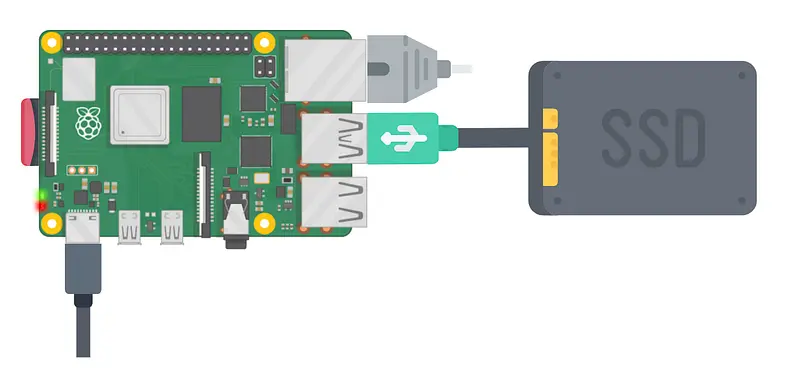
- Connect the storage drive into any of the two USB 3.0 ports (blue colored) on the Raspberry Pi
- Connect the Raspberry to your router using the ethernet cable
- Connect the power supply to the Raspberry. DON’T CONNECT THE POWER SUPPLY TO THE POWER YET
Step 3: Download StartOS
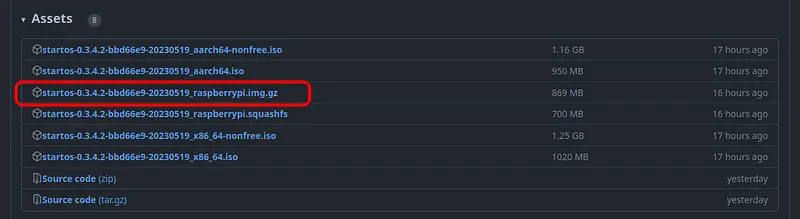
Visit the Github release page to find the latest StartOS release.
At the bottom of the page, under “Assets” download the startos-..._raspberrypi.img.gz file. The commands below use the 0.4.0.1 release as an example: replace the file name with the exact one you downloaded.
On Linux
Verify the checksum against the one listed on GitHub (SHA256):
sha256sum startos-0.4.0.1_raspberrypi.img.gz
On Mac
Verify the checksum against the one listed on GitHub by opening a terminal and entering:
openssl dgst -sha256 startos-0.4.0.1_raspberrypi.img.gz
On Windows
Verify the checksum against the one listed on GitHub by opening Windows PowerShell, changing your directory to where you downloaded the .img.gz file, and running Get-FileHash:
cd Downloads Get-FileHash startos-0.4.0.1_raspberrypi.img.gz
Step 4. Download Balena Etcher
Download and install Balena Etcher on your computer. It is required to flash the StartOS file that you downloaded in the previous step onto the microSD card.
balenaEtcher - Flash OS images to SD cards & USB drives
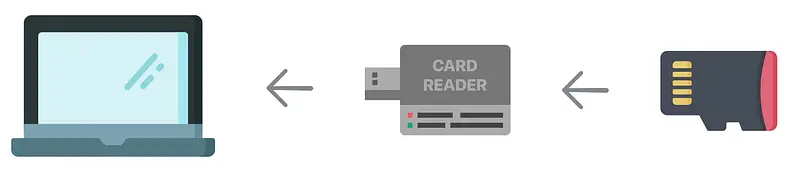
Step 5. Plug the microSD card into your computer
You might need a card reader if your computer doesn’t have one. Here’s a good one on Amazon.
Step 6. Flash StartOS
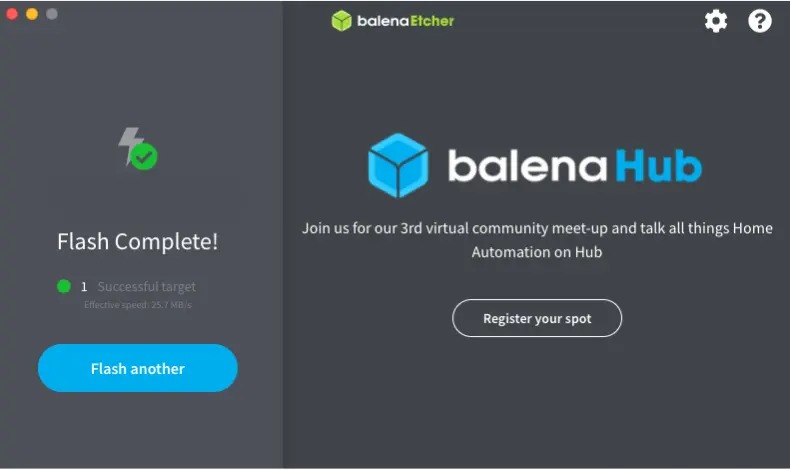
Open Balena Etcher and flash the downloaded StartOS gz file on the microSD card. You need to follow these steps:
- Pick the
Flash from fileoption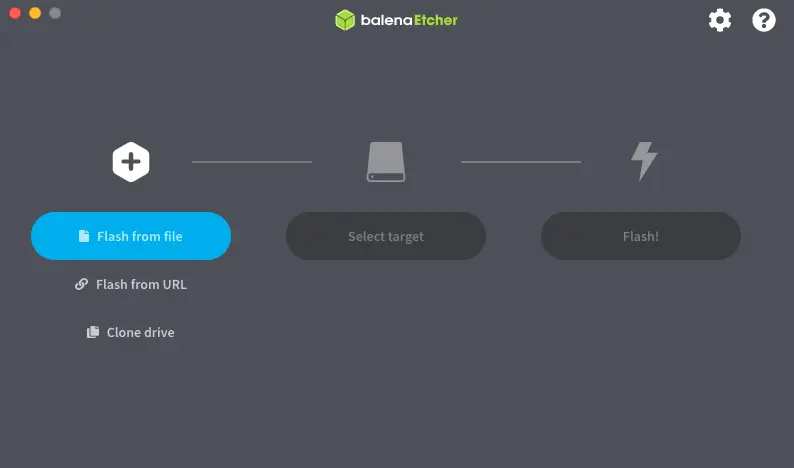
- Pick the
Select Targetoption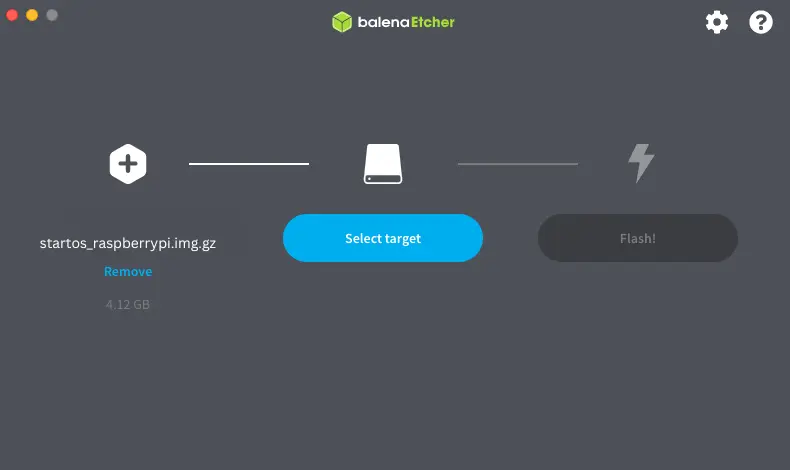
- Check the SD Card and click on
Select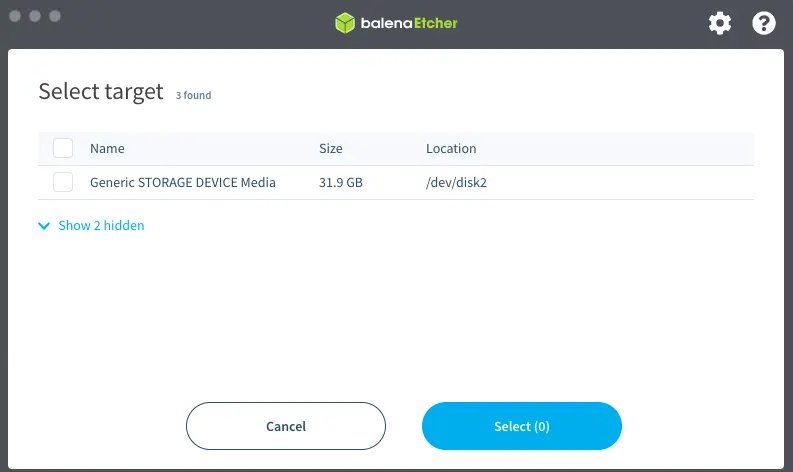
- Click on the
Flashoption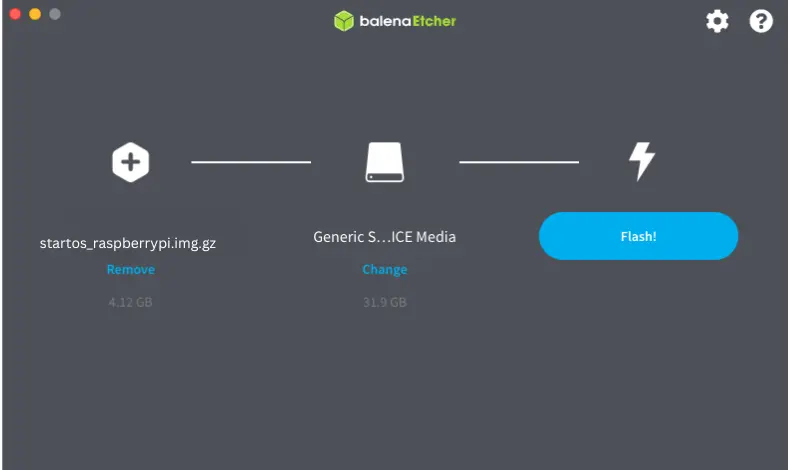
- When finished, you will see a
Flash Completelegend.
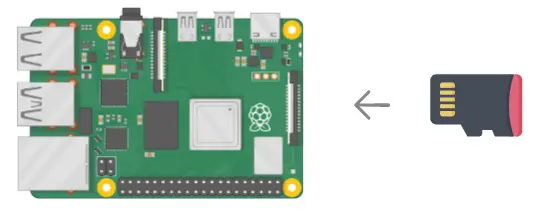
Step 7. Insert the microSD card into the Raspberry
After the flash is successful, remove the microSD card from your computer and insert it into the Raspberry Pi.
Step 8. Power up
Power up the Raspberry Pi to turn it on.
Any existing data on the SSD will automatically be deleted when you turn on the Raspberry Pi.
Step 9. Wait until StartOS is accesible
After some minutes, your StartOS will be accessible at http://start.local on any device that’s connected to the same network as the Raspberry Pi. If you can’t access your StartOS, you can use Angry IP Scanner to find the IP address of your StartOS and type that in the browser instead of http://start.local.
Step 10. Configure StartOS
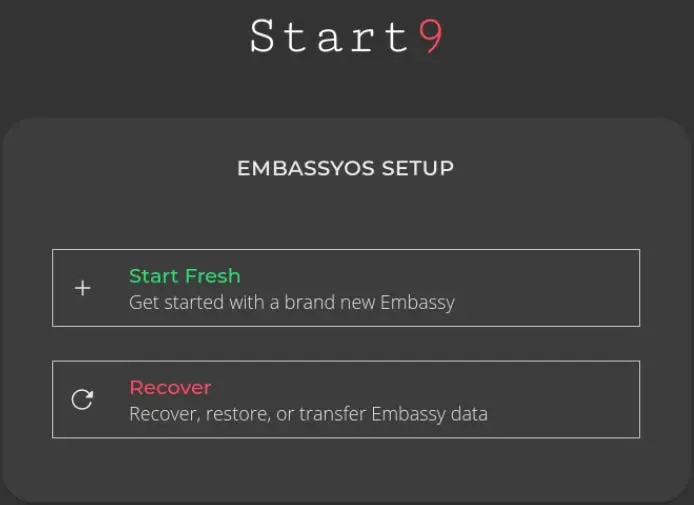
- Select “Start Fresh.”
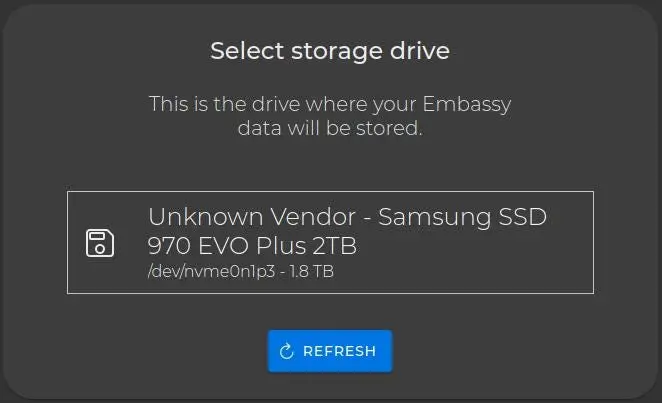
- Select your storage drive
- Create a master password for your server and click
Finish.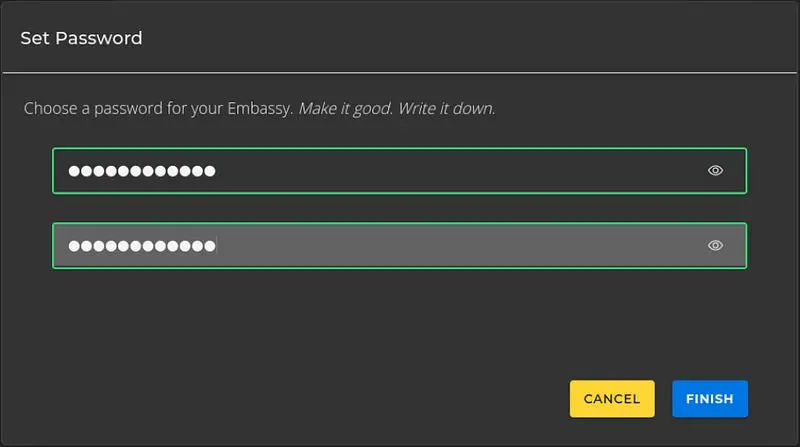
- StartOS will initialize. This can take up to a few minutes.
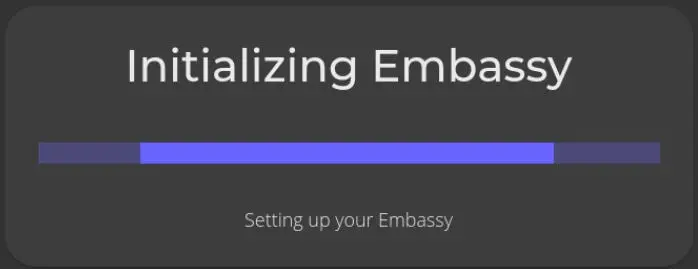
Step 10. Install the Bitcoin Core Service
Go to the StartOS Marketplace and install the Bitcoin Core app.
This app will transform your StartOs into a Bitcoin node. It will automatically start to download the blockchain. Take into account that this will take several days.
Step 11. Install the Mempool Service
Go to the StartOs Marketplace and install the Mempool service.
Mempool gives you a block explorer that runs on your own machine and answers from your own copy of the blockchain. Checking a transaction or estimating a fee no longer tells a third-party website which addresses you care about.
More options for Raspberry Pi 4
Options for Raspberry Pi 5
Visit our Website
Start9 is one of several ways to get there, and the right one depends on the hardware you have and the apps you care about. Our Bitcoin Nodes Comparison TheBitcoinHole.com website lets you filter node distributions by supported devices, apps, Lightning implementation and license.
Compare the top node platforms
Running Start9 and curious how it holds up against Umbrel, its closest rival? We compare both platforms feature by feature: hardware, apps, firmware and price.
Start9 vs Umbrel: which Bitcoin node wins?
Support Us
There are different ways to support our work:
 Support Us on Ko-fi