
Why run your own bitcoin node?
Your node is what lets your wallet answer “how much bitcoin do I have?” without asking a stranger. It also becomes the backend for everything else you may want to self-host: an Electrum server for your wallets, a private block explorer, and a Lightning node for everyday payments. Before we get to the parts list, this article covers why all of that is worth the effort:
Reasons to run your own Bitcoin node
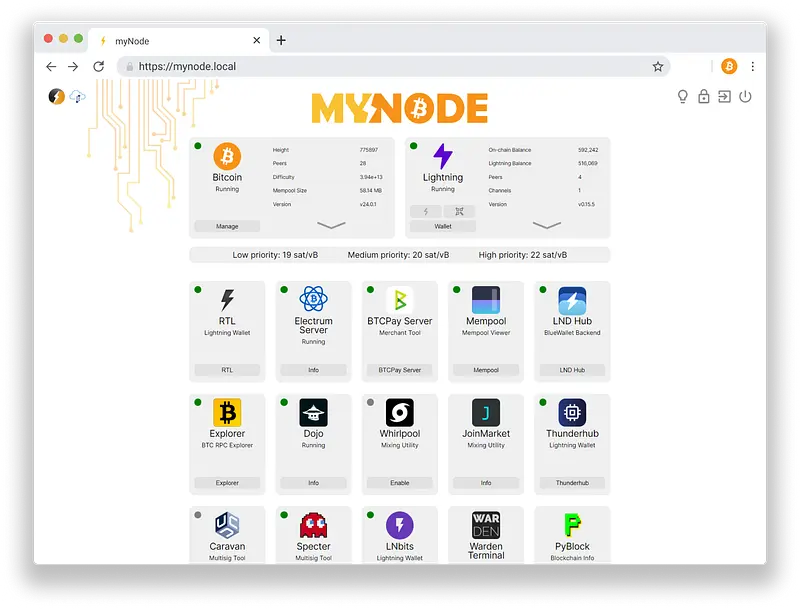
What’s MyNode?
MyNode is a platform that provides uptime, reliability, ease-of-use and a huge variety of applications! By integrating a number of Bitcoin-related open-source projects, it provides access to Bitcoin and Lightning along with a number of other features.
By running Bitcoin and Lightning on your myNode device, you maintain all the security and privacy originally intended in the Bitcoin protocol. Your transactions are verified by your local node, removing the need to trust online 3rd parties for spending or verifying funds.
How to set up a Bitcoin Node?
To set up a Bitcoin Node with MyNode on a Raspberry Pi 4, you need to follow the following steps:
Step 1: Buy the parts
You will need to buy the following parts. You can buy them using the Amazon or AliExpress affiliate links in this article to support us.
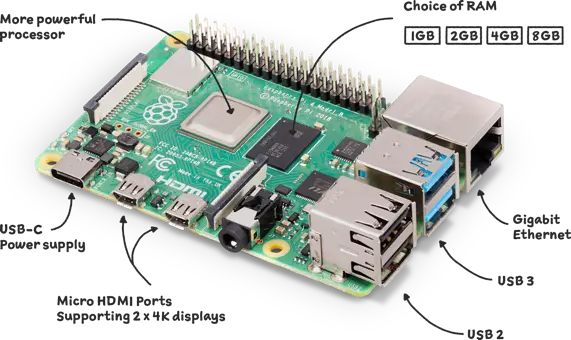
Raspberry Pi 4
Pick 8 GB RAM for maximum performance.
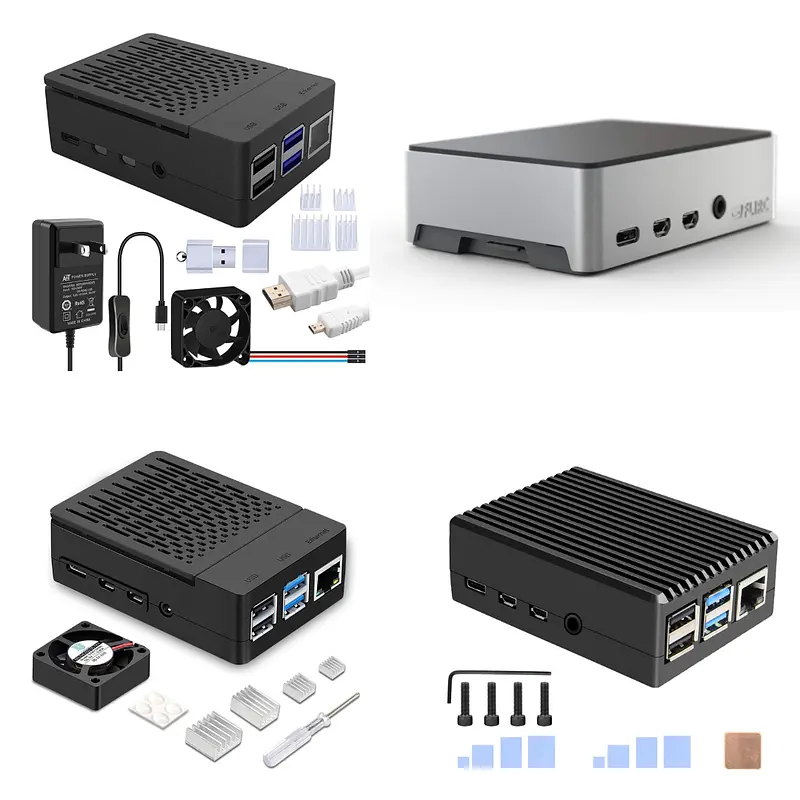
Wrap your new personal server in a nice box.
Some good options on Amazon:
- GeeekPi Case
- Flirc Raspberry Pi 4 Case
- iUniker Raspberry Pi 4 Case
- Geekworm for Raspberry Pi 4 Aluminum Case
Some good options on AliExpress:
- DIYzone Store Aluminum Alloy Case
- Electree Raspberry Pi 4 Model B ABS Case
- Argon One V2 Case
- Raspberry Pi 4 Aluminum Alloy Case
Power Supply
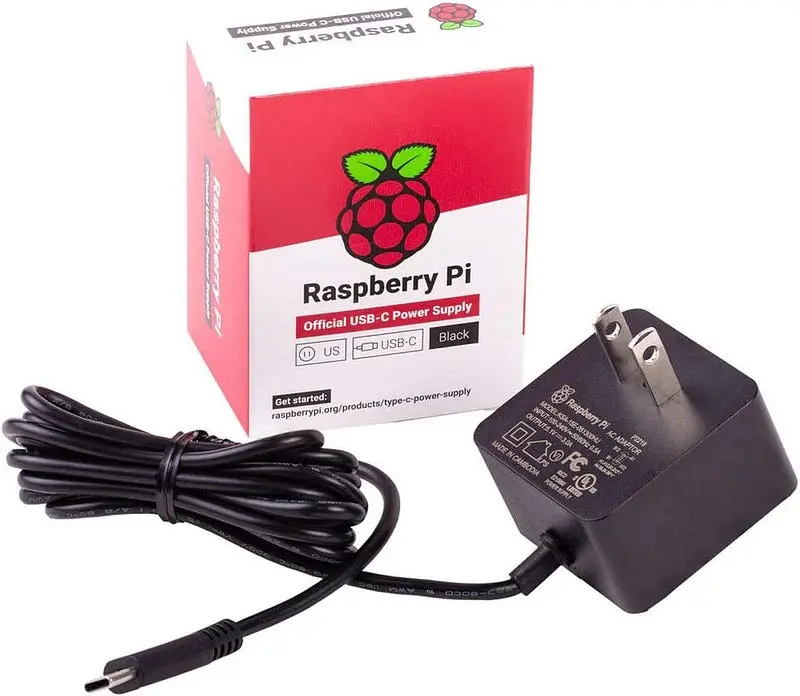
Make sure to use the official Raspberry Pi power supply to prevent any unexpected issues.
2 TB or more is recommended.
Some good options on Amazon:
Some good options on AliExpress:
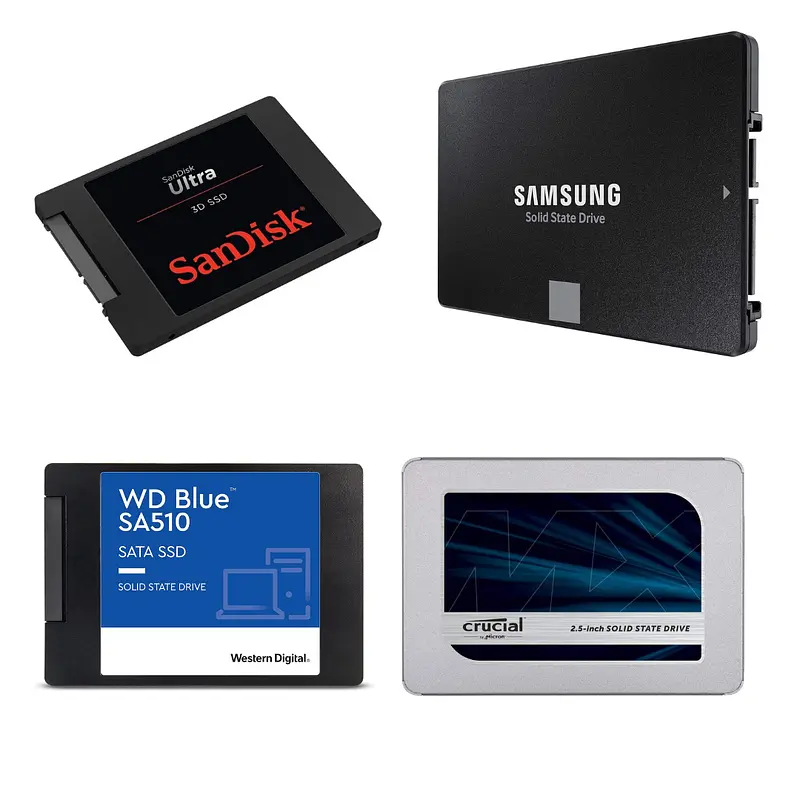
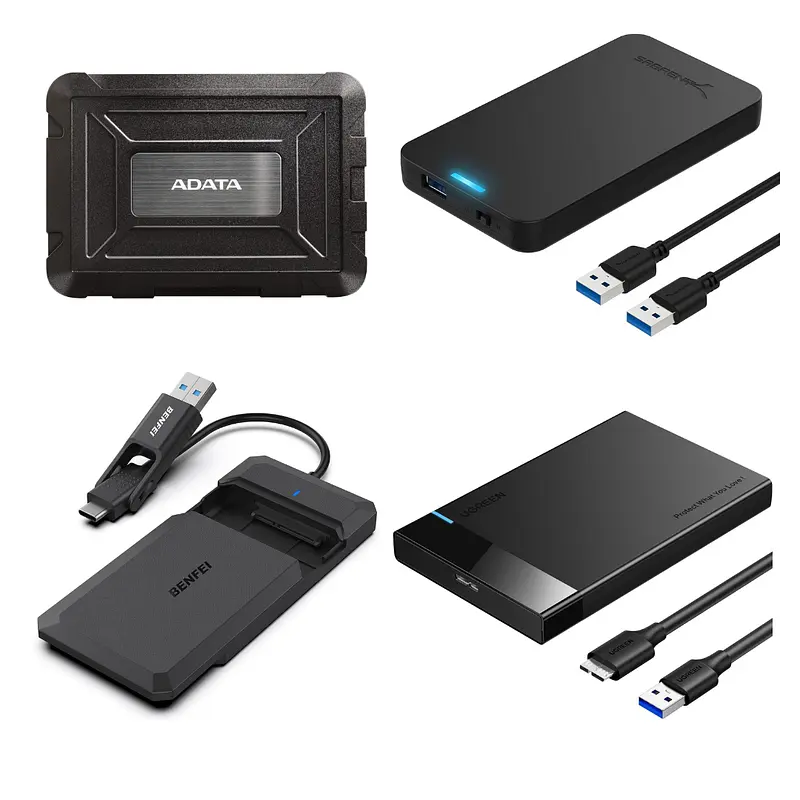
Storage Drive’s Enclosure
To connect the storage drive to the Raspberry Pi via USB.
Some good options on Amazon:
Some good options on AliExpress:
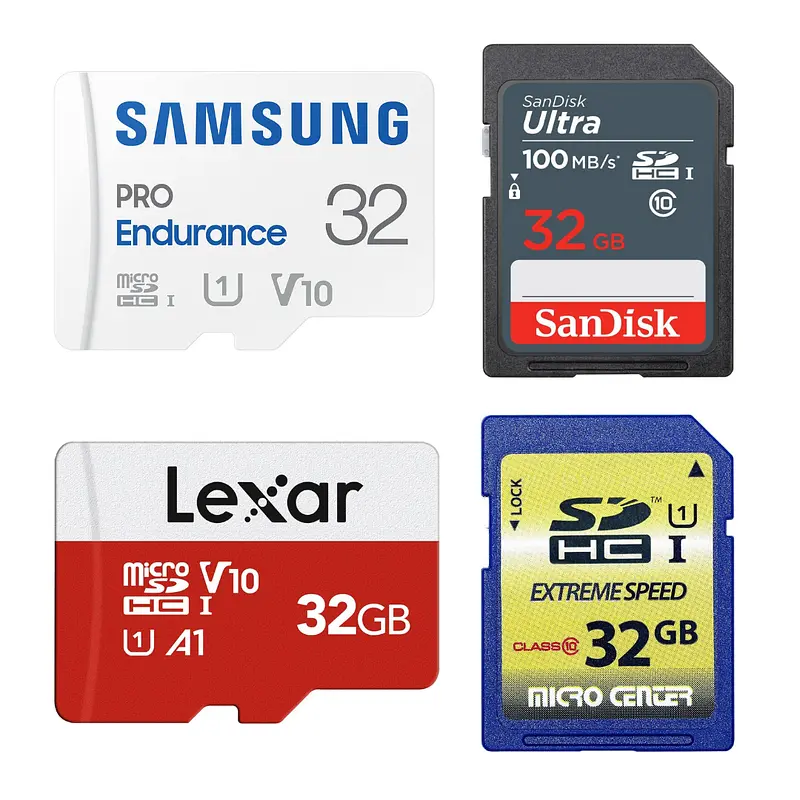
microSD card
The microSD card is only used to run the firmware. All of your apps and data are stored on the storage drive. You will need a 32GB+ microSD.
Some good options on Amazon:
Some good options on AliExpress:
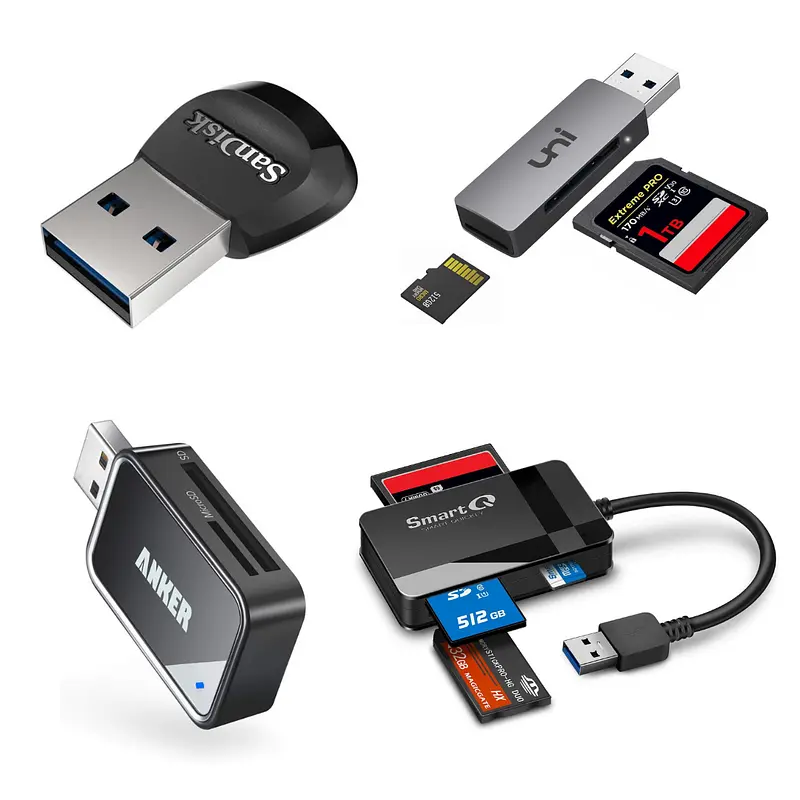
MicroSD Adapter (Optional)
You will need to buy an adapter if your computer doesn’t have a MicroSD slot.
Some good options on Amazon:
Some good options on AliExpress:
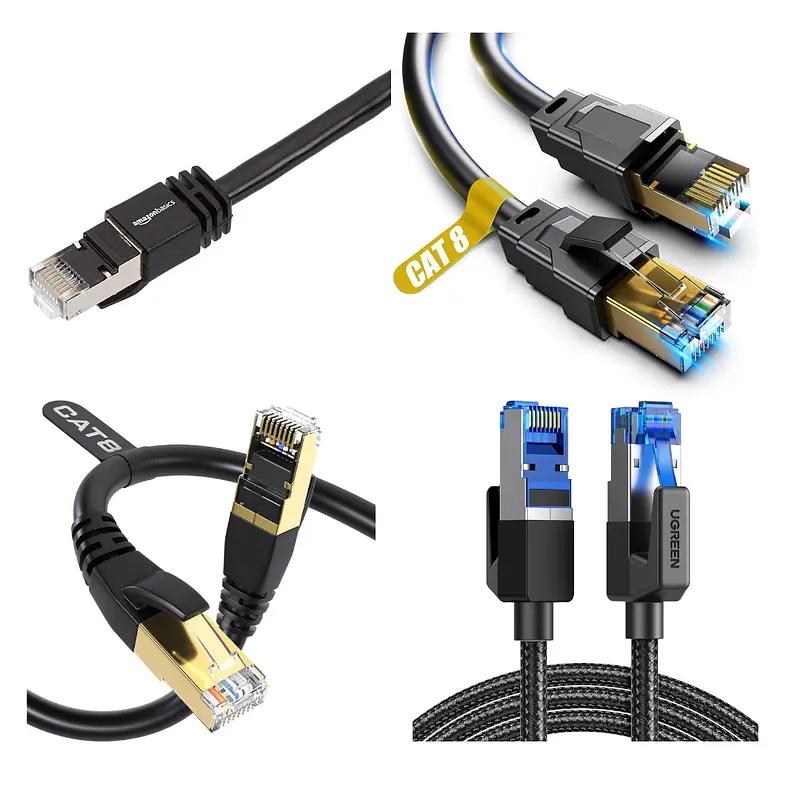
Ethernet Cable(Optional)
You can connect your Raspberry Pi to the internet using Wifi or Ethernet. If you choose Ethernet, you will need an Ethernet cable to connect to your router.
Some good options on Amazon:
- Amazon Basics RJ45 Cat 7
- Vabogu Cat 8 Ethernet Cable
- DbillionDa Cat8 Ethernet Cable
- UGREEN Cat 8 Ethernet Cable
Some good options on AliExpress:
- CYANMI Cat8 Ethernet Cable
- UGREEN CAT8 Ethernet Cable
- Vention Cat8 Ethernet Cable
- D-Sunty Ethernet Cable CAT8
Step 2: Assemble the Node
Assembling the node is pretty easy. You just need to:
- Put the Raspberry in its case
- Put the storage drive in its enclosure
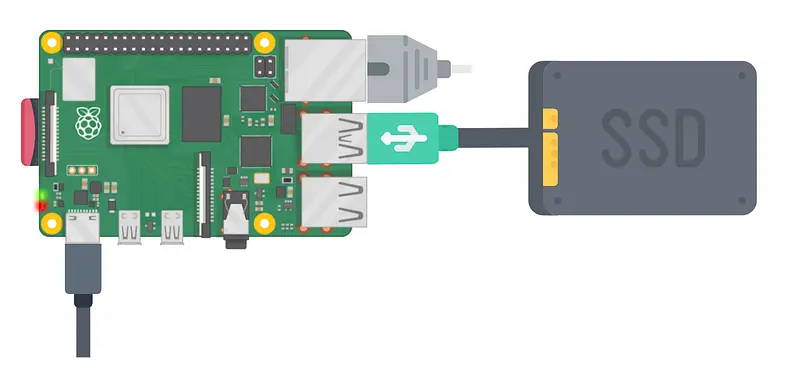
- Connect the storage drive into any of the two USB 3.0 ports (blue colored) on the Raspberry Pi
- Connect the Raspberry to your router using the ethernet cable
- Connect the power supply to the Raspberry. DON’T CONNECT THE POWER SUPPLY TO THE POWER YET
Step 3: Download the Firmware
Download the latest firmware version from the official website:
Step 4. Download Balena Etcher
Download and install Balena Etcher on your computer. It is required to flash the firmware file that you downloaded in the previous step onto the microSD card.
balenaEtcher - Flash OS images to SD cards & USB drives
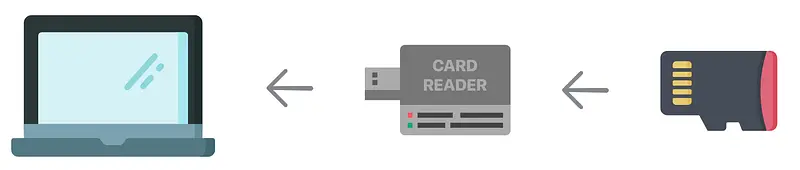
Step 5. Plug the microSD card into your computer
You might need a card reader if your computer doesn’t have one. Here’s a good one on Amazon.
Step 6. Flash the Firmware
Open Balena Etcher and flash the downloaded firmware file on the microSD card. You need to follow these steps:
- Pick the
Flash from fileoption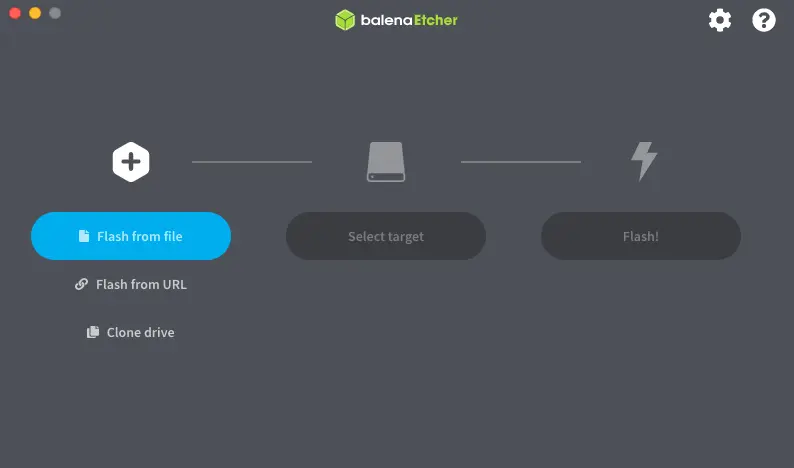
- Pick the
Select Targetoption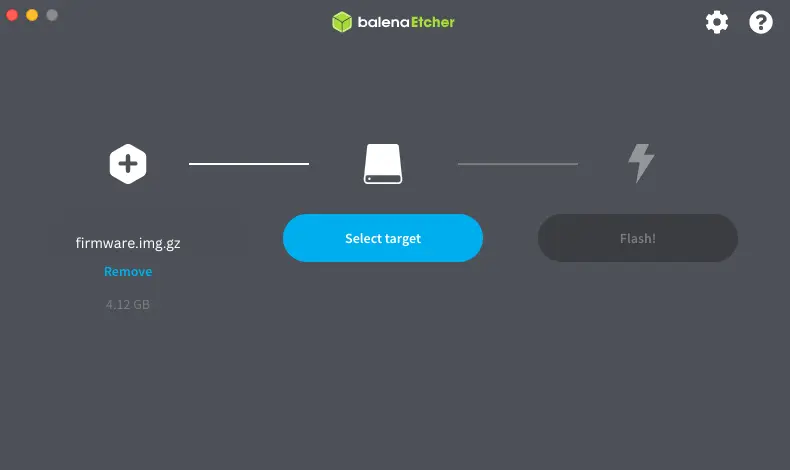
- Check the SD Card and click on
Select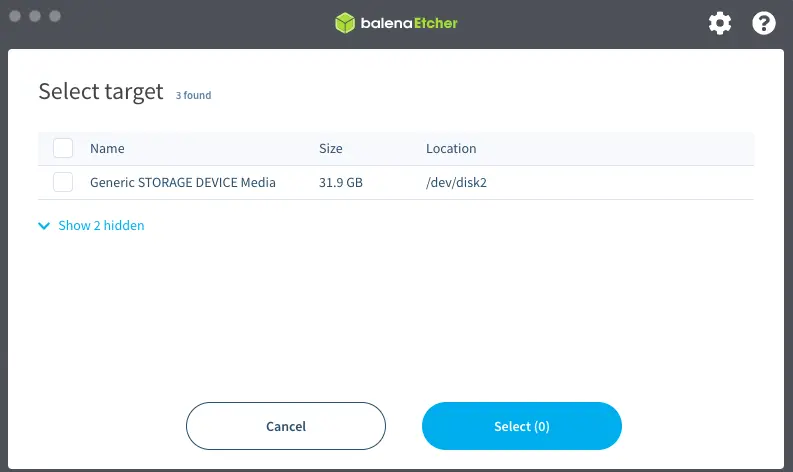
- Click on the
Flashoption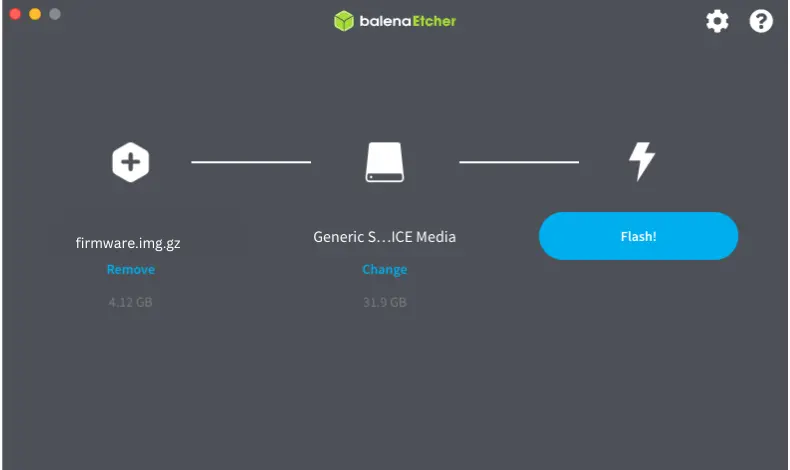
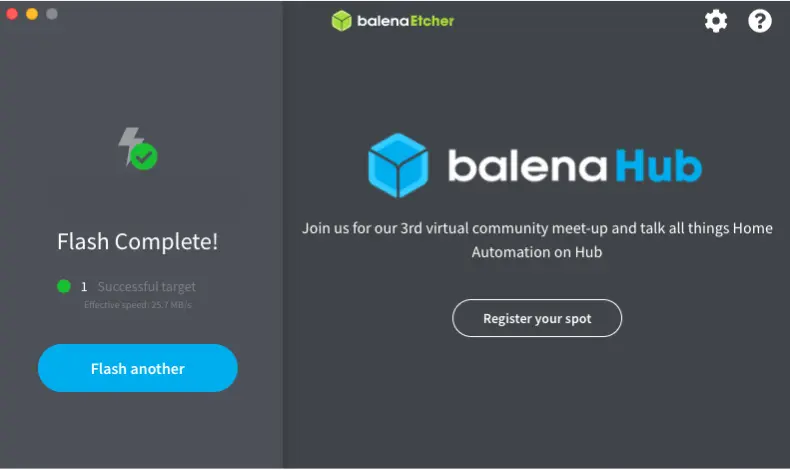
- When finished, you will see a
Flash Completelegend.
Step 7. Insert the microSD card into the Raspberry
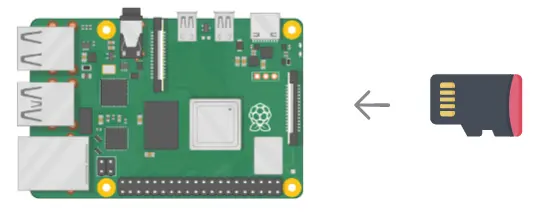
After the flash is successful, remove the microSD card from your computer and insert it into the Raspberry Pi.
Step 8. Power up
Power up the Raspberry Pi to turn it on.
Any existing data on the SSD will automatically be deleted when you turn on the Raspberry Pi.
Step 9. Wait until MyNode is accesible
After some minutes, your MyNode will be accessible at http://mynode.local on any device that’s connected to the same network as the Raspberry Pi. If you can’t access your MyNode, you can use Angry IP Scanner to find the IP address of your MyNode and type that in the browser instead of http://mynode.local.
Step 10. Configure MyNode
- Choose the Community Edition option

Next, the device will begin syncing the Bitcoin Blockchain! This process can take 6+ days, depending on your device and your network bandwidth. The myNode web interface will show you the current status of synchronization. Once the initial sync is completed, the device will automatically stay synchronized with the Bitcoin network and display the main application page.

More options for Raspberry Pi 4
Options for Raspberry Pi 5
Visit our Website
MyNode is one of the node distributions that run on a Raspberry Pi 4, and each one makes different trade-offs between bundled apps, free features and paid tiers. You can compare all of them on our Bitcoin Nodes Comparison TheBitcoinHole.com website.
Compare the top node platforms
Weighing MyNode against the two most popular plug-and-play node platforms? Our head-to-head compares Umbrel and Start9 on hardware, apps, firmware and price.
Umbrel vs Start9: which Bitcoin node wins?
Support Us
There are different ways to support our work:
 Support Us on Ko-fi